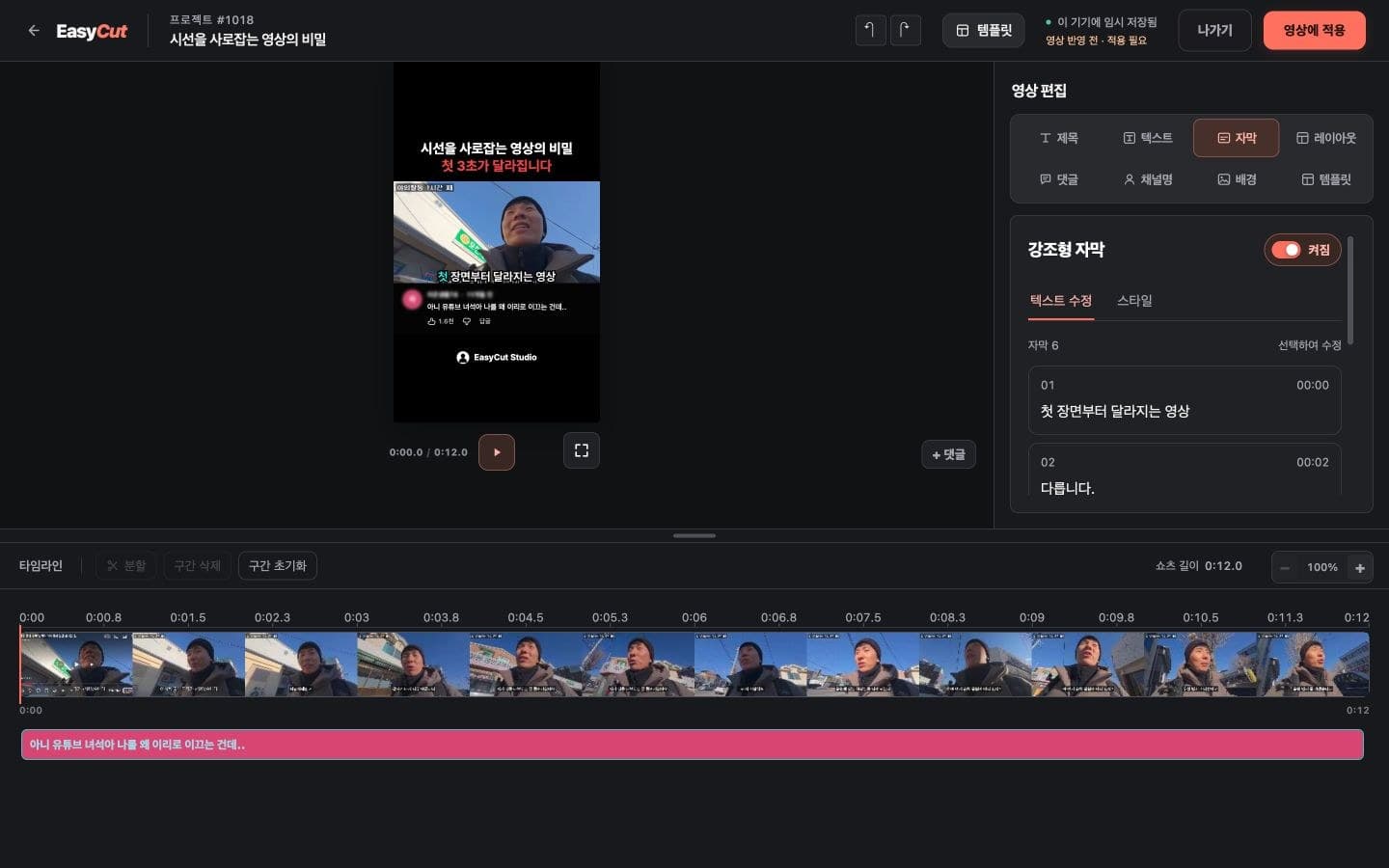
What changed
The refreshed editor
The editor now uses EasyCut’s dark background and coral buttons. Larger text and controls make it easier to read and use on desktop and mobile.
On desktop, select Title, Text, Subtitles, Layout, Comments, Channel name, Background or Template to the right of the preview. Use Layout to adjust or reset the video’s size and position.
A timeline that fits your work
The desktop timeline is taller so you can view several layers together. Drag its upper divider up or down to resize it, or double-click to restore the default height. The number of visible layers depends on your screen height.
On mobile, spread or pinch two fingers over the timeline to zoom. In Chrome on Mac, you can use the same pinch gesture on your trackpad. The existing + and − buttons remain available.
Time labels are spaced out on narrow screens to prevent overlap. Zoom in to see more detailed timing marks.
Edit subtitles from the list
For videos that support subtitle text editing, choose a line in the Subtitles “Edit text” tab to change it. Use the “Style” tab to adjust fonts, colors and size.
On mobile, tap “Done” to return to the timeline. To apply your edits to the final video, select “Apply to video”.
Based on the change history for 2026.10.18. Screenshots may differ from the interface at the time of the update and may be in Korean. Check your account, plan and current service notices for feature availability.