Changes
Focus directly on the parts you want to change
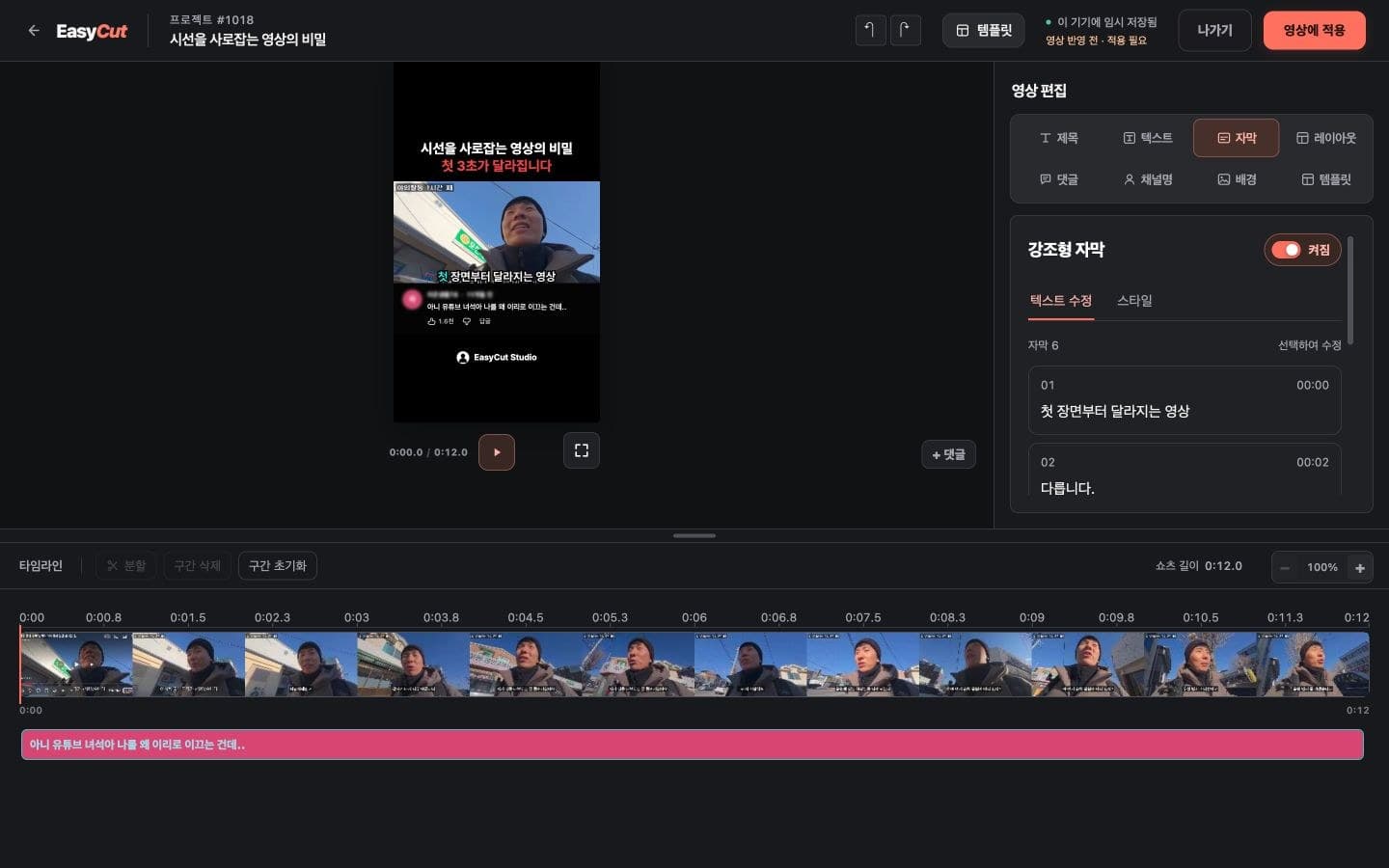
We’ve simplified the editing screen for refining your finished Shorts on both PC and mobile. We’ve reduced redundant menus and explanations, and now show only the necessary controls for your selected item.
When you select text to edit, you can immediately change the content, font, color, and effects without needing to reopen the full list. Add new text and view the full list under the ‘Text’ menu.
Adjust the display times for comments and text using the handles at both ends of the timeline. Even if you select a segment on mobile, the editing window won’t pop up immediately, allowing you to continue adjusting the time without interruption.
On mobile, after editing content, tap ‘Done’ to close the input window and return to your selected timeline. We’ve also improved height and scrolling so the text bar at the bottom doesn’t get hidden by menus.
During editing, the duplicate buttons at the bottom are hidden, and ‘Split’ only appears when a video is selected. PC’s ‘Forward/Backward’ have been moved into settings, and ‘Hooking Title’ has been shortened to ‘Title’.
To apply editing results to the final video, tap ‘Apply to Video’ as before. Mobile’s ‘Done’ is the button to return to the timeline after finishing content edits.
On mobile, return with ‘Done’
After editing content, tap ‘Done’ in the top right corner to close the input window and return to your selected timeline. Apply to the final video from ‘Apply to Video’.
- 1If you’ve finished editing, tap ‘Done’. Return to your selected timeline.
Based on the change history for 2026.10.08. Screenshots may differ from the interface at the time of the update and may be in Korean. Check your account, plan and current service notices for feature availability.