Changes
See the difference
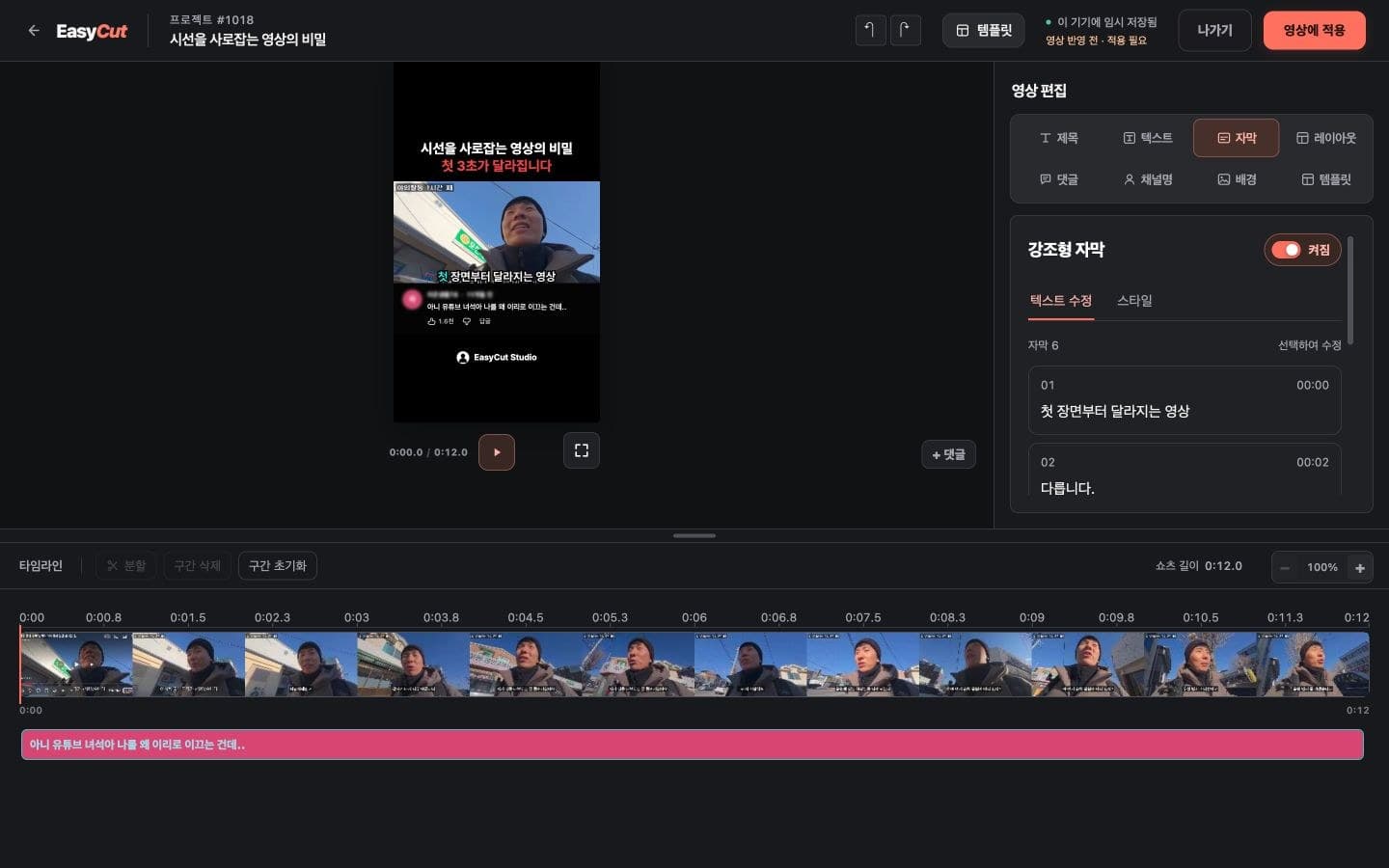
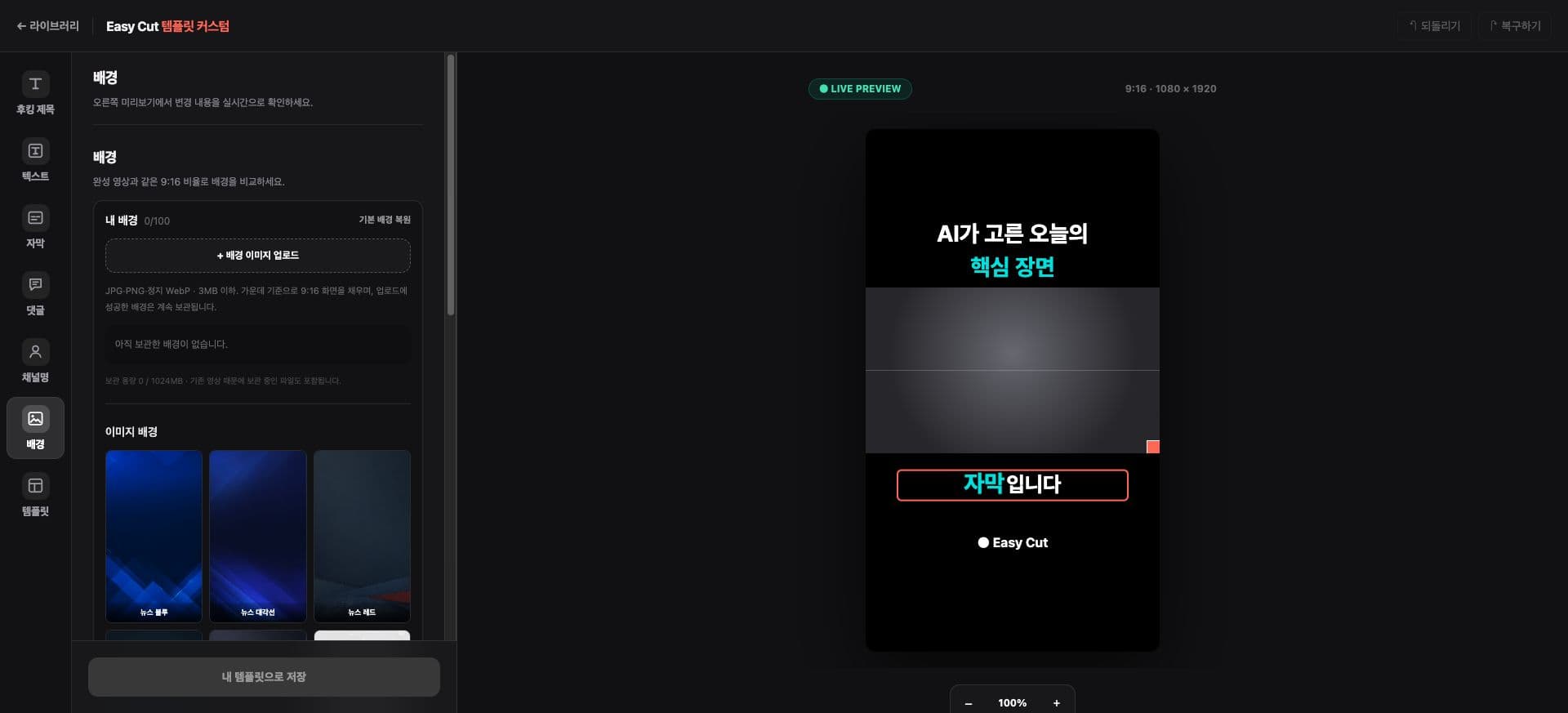
Tools for arranging background images and text in templates have been added.
You can preview the screen layout along with titles, comments, and channel names.
Save frequently used layouts as my templates and use them for future creations.
View on screen
Check the placement for actual use on screen. Tap the image to enlarge it.
- 1Background Settings
How to use it
How to use
- 01
Open a new template in the Template Library.
- 02
Arrange the screen with background and text tools.
- 03
Save as my template and select it for your next creation.
Based on the change history for 2026.08.31. Screenshots may differ from the interface at the time of the update and may be in Korean. Check your account, plan and current service notices for feature availability.