Changes
Here's how it has changed
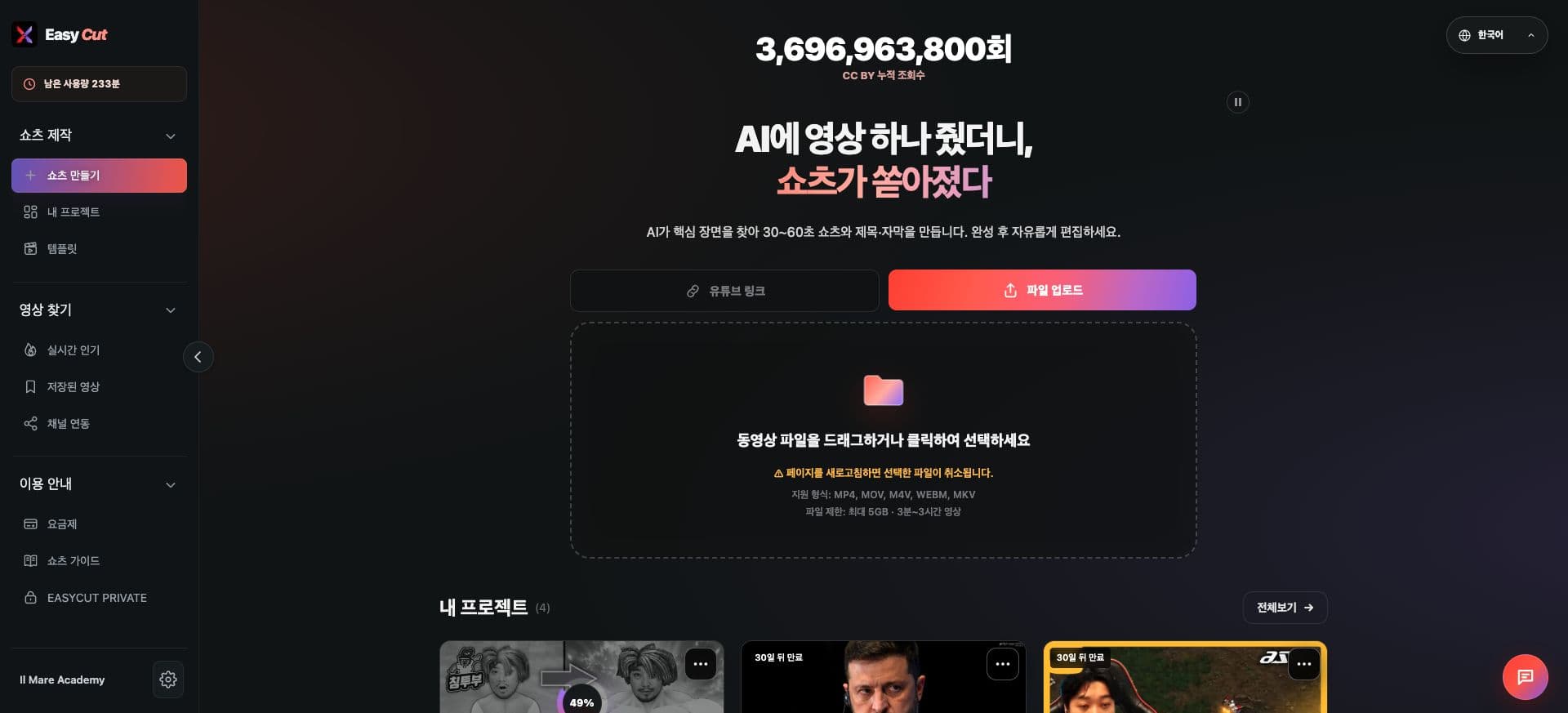
A file upload option has been added to the Home screen.
After selecting a file, you'll see a flow to check video information and instructions.
File upload is subject to beta guidelines and account-specific terms of use. Please check the file requirements shown on the screen.
See it on screen
Check the actual screen to see where to use it. Tap the image to view it larger.
How to use it
How to use it
- 01
Select the File Upload tab on the Home screen.
- 02
Select your video file.
- 03
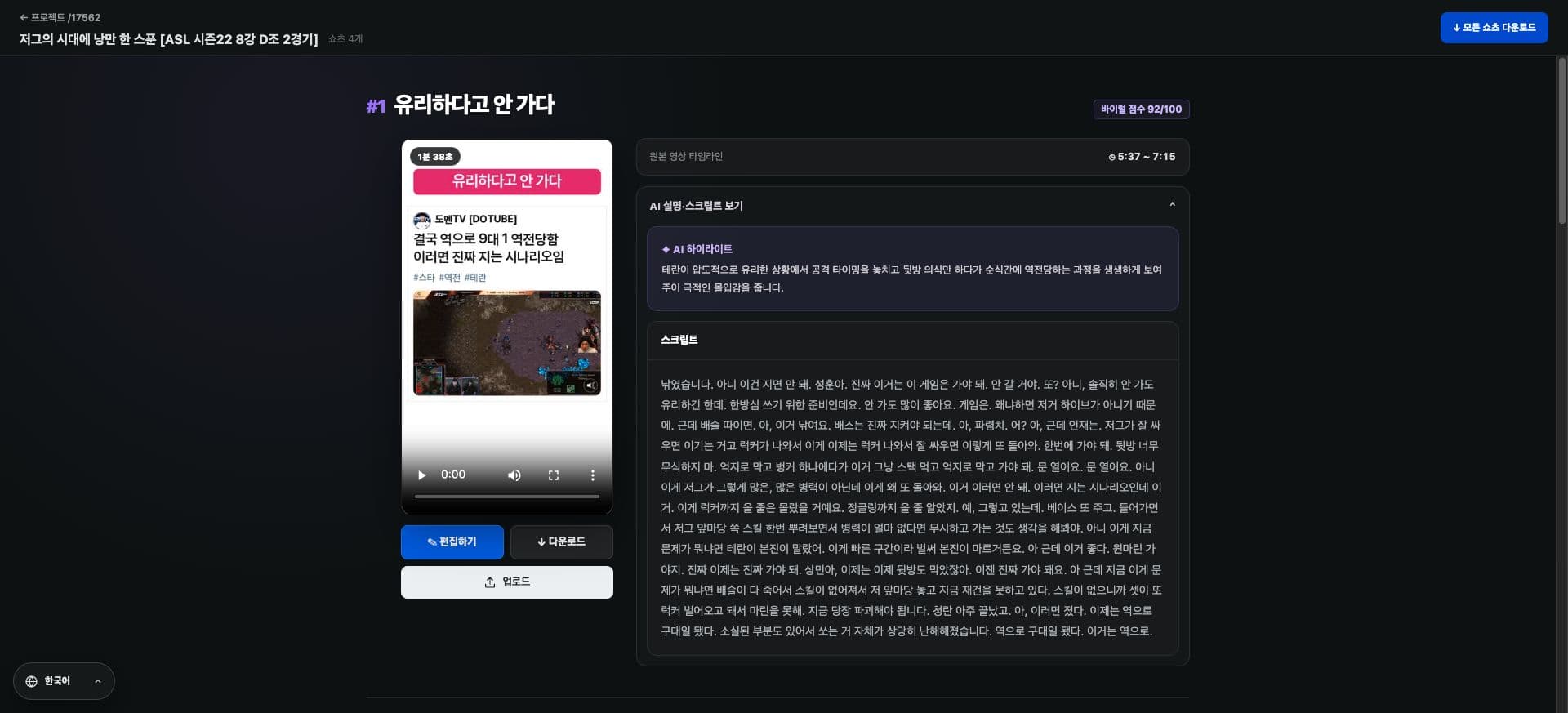
Check the video information and usage guidelines, then proceed with creation.
Based on the change history for 2026.08.30. Screenshots may differ from the interface at the time of the update and may be in Korean. Check your account, plan and current service notices for feature availability.