Changes
See the difference
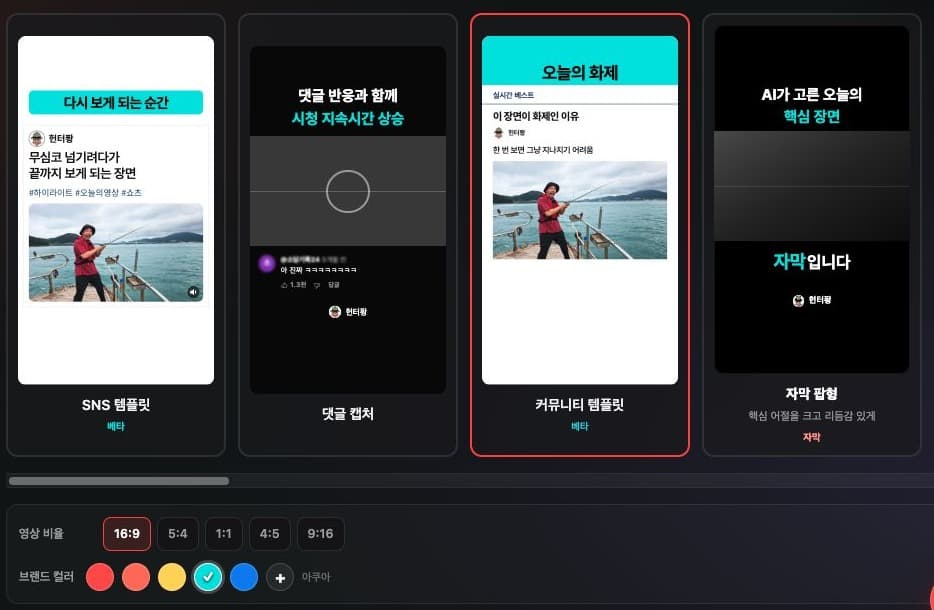
Community Template Beta has been added to the YouTube link creation screen. Select the Community Template next to the comment capture in the template list.
AI creates the board name, a hooking title, and short body text based on the video content. You can also change the text directly in the editing screen after creation.
Brand colors are applied to the top board area. The title text color adjusts automatically to match the background color.
You can choose from 16:9, 5:4, 1:1, 4:5, or 9:16 for the video area within the vertical Short. The arrangement of the board and text remains the same while you change the video aspect ratio.
See it in action
Check where it's used in the actual screen. Tap the image for a larger view.
- 1Select Community Template
- 2Video Aspect Ratio & Brand Color Settings
How to use it
How to use
- 01
After logging in, go to Home, enter your YouTube link, and open the creation settings.
- 02
Select the Community Template from the template list.
- 03
Preview the video aspect ratio and brand colors, then create your Short.
- 04
After creation, refine the board name, title, and body text with your desired wording in the editing screen.
Based on the change history for 2026.09.30. Screenshots may differ from the interface at the time of the update and may be in Korean. Check your account, plan and current service notices for feature availability.