New Feature
From creation to TikTok posting, seamlessly
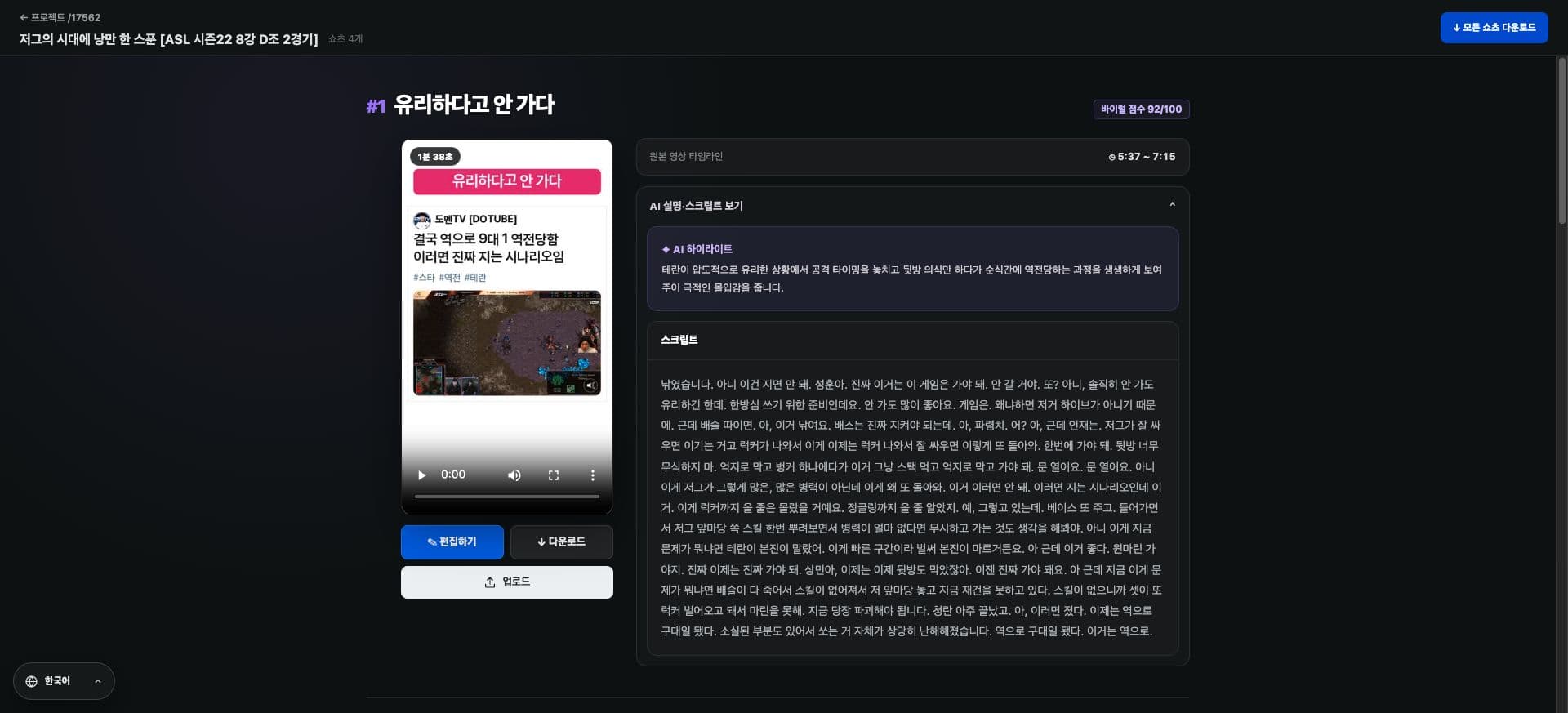
You can now upload Shorts created in EasyCut directly to TikTok. No need to download and transfer videos separately. Just select your account in the project and finalize your post.
Find Video → Channel Linking: You can connect your TikTok account. When uploading, confirm your connected account and title, and select the privacy setting available for your account, such as 'Public'.
You can check the upload progress and completion status within EasyCut. If there are any issues with the connection or upload, please check the displayed cause and guidance.
How to use it
How to Use
- 01
Go to Find Video → Channel Linking, click 'Connect' for TikTok, and agree with the account you wish to use.
- 02
In the finished project, click the upload button below the video and select TikTok.
- 03
Confirm the connected account, title, and privacy settings, then set posting options like comments and any necessary guided items.
- 04
Agree to the post content and click Upload. Once the completion notice appears, you can find your video on TikTok.
Usage Guide
Please check before uploading
TikTok upload is available on paid plans. Selectable privacy settings and posting options may vary depending on the connected TikTok account.
If you were using a previous test connection, please reconnect TikTok. Confirm the account and privacy settings you wish to upload, then post.
Based on the change history for 2026.10.09. Screenshots may differ from the interface at the time of the update and may be in Korean. Check your account, plan and current service notices for feature availability.